

Why don't translators translate a scanned PDF?
A PDF made in Word or a layout program has text: each letter is a character you can select and copy. A scanned PDF doesn't; each of its pages is a picture, just like a photo of the paper taken with a phone.
Online translators take the text out of the file. When there's none, they show an error, hand back blank pages, or at best return the text they read on its own, without the layout, which then has to be rebuilt.
- Old books and notes that only exist on paper.
- Documents, letters and certificates that were scanned.
- Catalogues and manuals whose original files are lost.
- PDFs where some pages are text and some are pictures.
What Goftito does with a scanned page
-
It recognises the page
Every page without readable text, or whose text reads wrongly because of a broken font, is picked out; the text pages of the same file are translated as usual.
-
It reads it from the image
The page is read by an AI vision model: line by line, with its headings, paragraphs and lists, and numbers digit by digit.
-
It translates it with the rest of the document
The page's text is translated along with the rest of the document, so terms stay consistent across the file and your glossary applies too.
-
It writes the translation on the page
The original writing is removed from the image, the background under it rebuilt, and the translation written in its place at the same size and alignment. Photos, stamps, signatures and the rest of the page aren't touched.
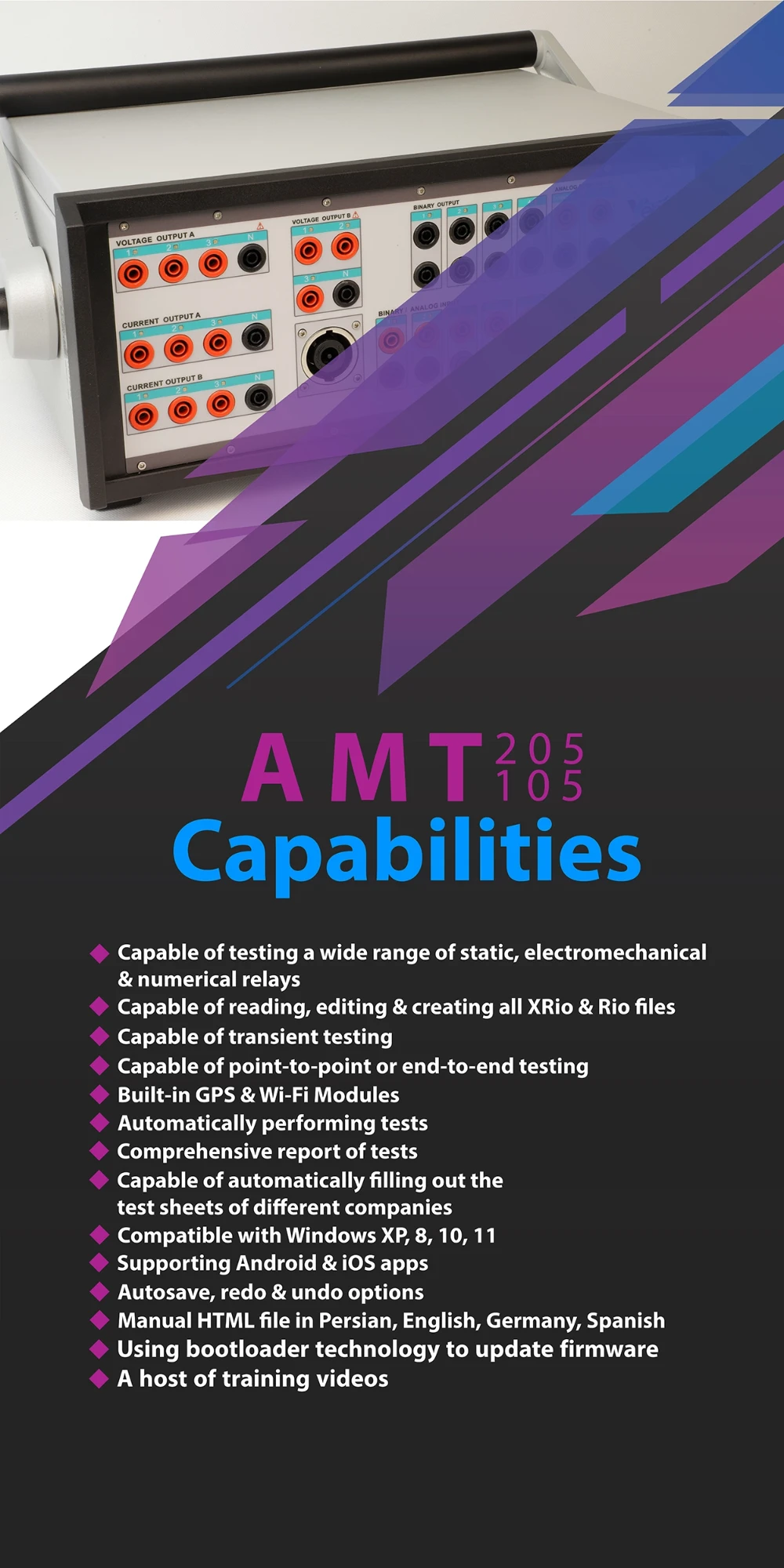
 English
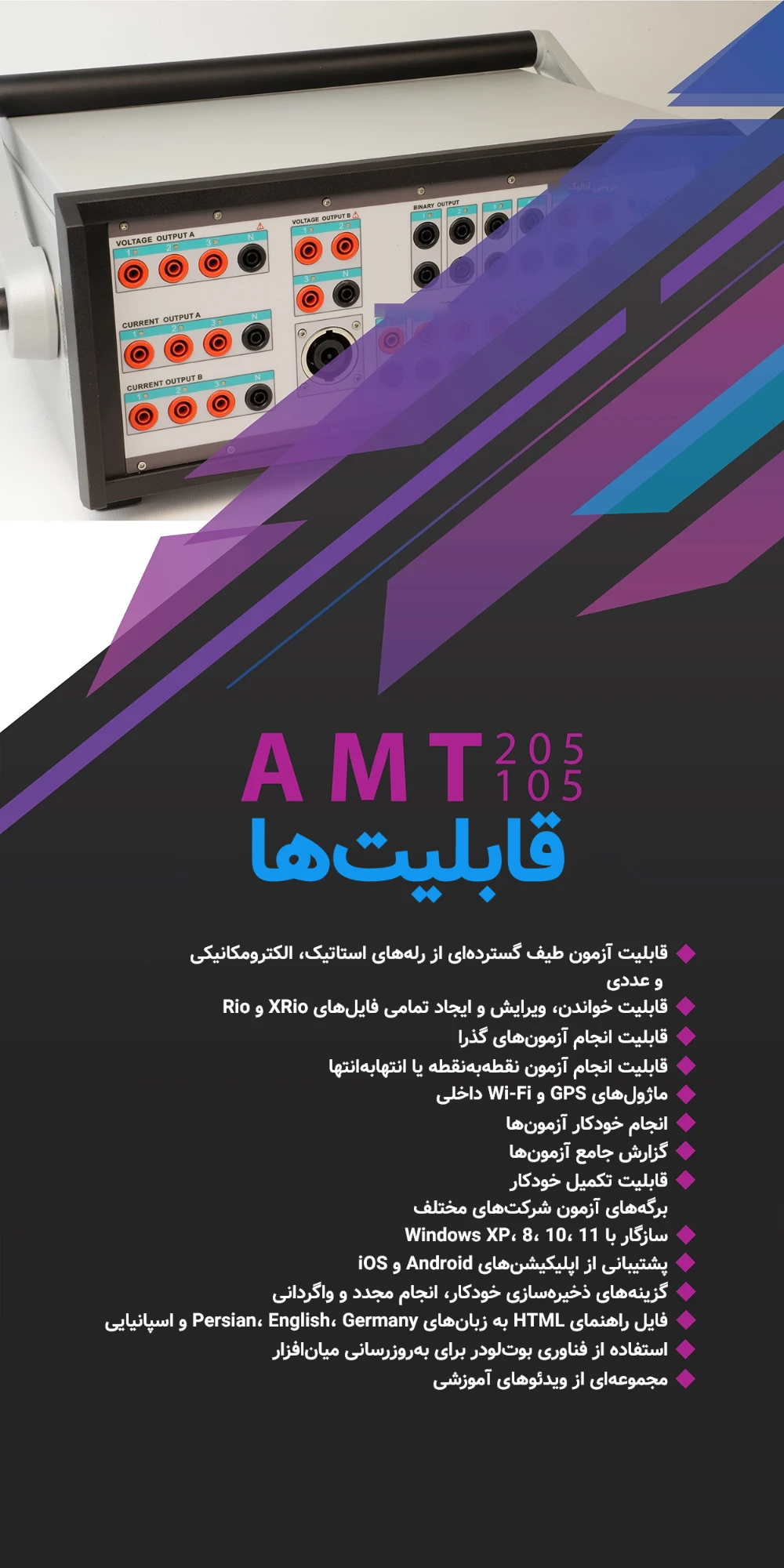
Persian
The heading and the list of capabilities from English to Persian: the bullets moved to the right, the model name and numbers are kept, and the photo of the device stays in place.
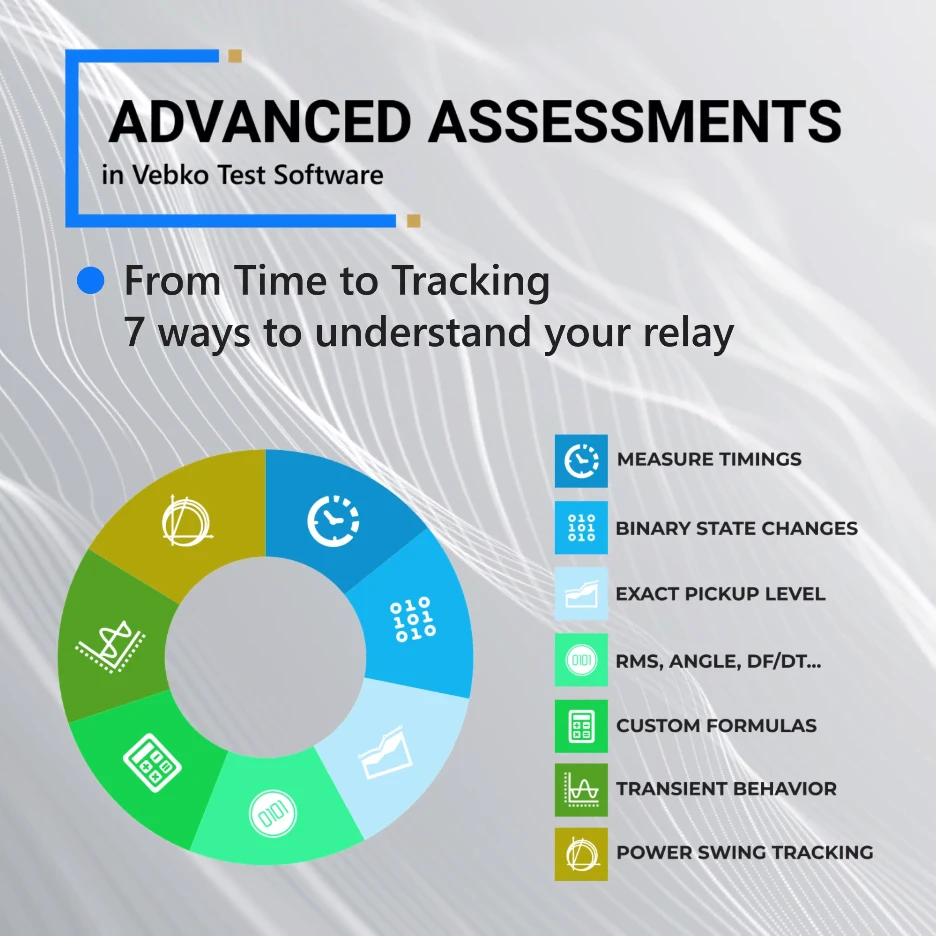
 English
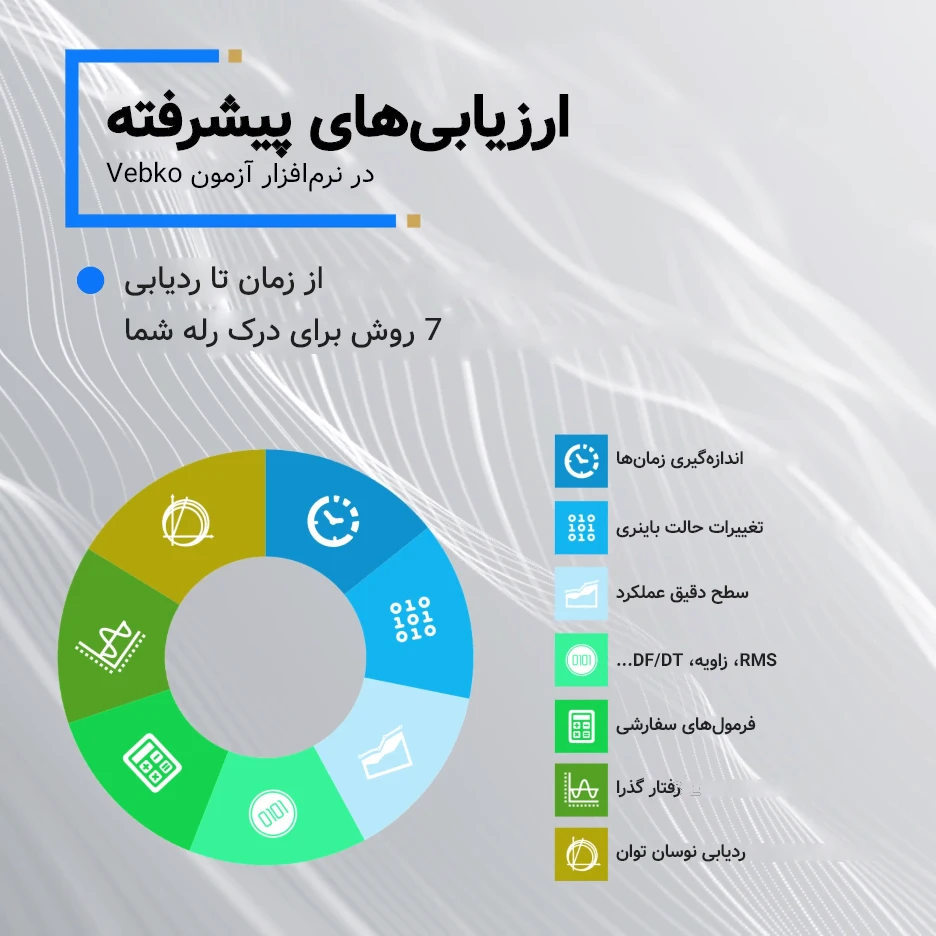
Persian
The heading, the description and the label of every icon are in Persian, each label stays beside its own icon, and the chart and icons are untouched.
These samples are pictures, not scans; but a page that is all one picture, which is what a scanned PDF is, is read and rewritten by this same engine.
Steps to translate a scanned PDF
-
Upload the file
In “New translation”, give it the scanned PDF itself; there's no need to turn it into Word or text first.
-
See the size and cost
The file is analysed, and the rough size and cost of the translation, reading the pages included, are on screen before it starts.
-
Choose the languages and mode
Set the target language, the quality and the translation mode (technical, legal, medical and so on).
-
Take the PDF
The translation runs in the background, so you don't have to keep the page open. The final file is the same PDF with its text translated.
A better scan, a better translation
The quality of the translation starts with the quality of the reading, and the reading depends on the scan. If you still have the paper, a few things make the result much better:
- 300 dpi is enough; more only makes the file heavier.
- Keep the page straight and flat, without the book's spine casting a shadow.
- Even light: a phone photo under daylight from a window is better than under a lamp.
- One page per page: don't scan two pages of a book together.
- If you took photos, “PDF and images” turns them into one PDF.
What to check after translating
- Check figures, dates and names against the original page.
- Read again the pages whose scan was poor.
- If the document goes to an official body, get a certified translation with a stamp from a translation office.