

Which job, which tool?
Start from the job you want done, not from a tool's name:
- The file is too heavy for email or a submission system: Compress PDF.
- You want to change a PDF's text or tables: PDF to Word.
- Join PDFs, take pages out or put them in order: Merge and split PDF.
- Turn PDF pages into pictures, or pictures into a PDF: PDF and images.
- A picture is small or soft: Upscale image.
- You want the subject without its background: Remove background.
- A picture is too heavy for a site, or in the wrong format: Compress and convert images.
- The text is on a picture or in a scan: Image to text.
- A document is long and you want its main points: Summarize a document.
- A text needs checking before it goes out: Persian proofreading.
- You want a video's sound, or another audio format: Extract and convert audio.
- The voice is lost under the room: Remove noise.
Shrinking a PDF without spoiling it
A PDF's weight comes mostly from two places: pictures sharper than they need to be, and fonts stored whole even if only a few of their letters appear. The text itself takes almost no room. That's why compression doesn't touch it, and the text stays selectable and searchable.
- High quality: about 30% lighter, fit for print.
- Balanced: about half the size, for email and sharing.
- Smallest file: about a fifth of the size, for reading on screen.
These figures are targets, not promises. The tool first does what can't hurt quality, taking out spare fonts, and only if it must, it lightens the pictures at the gentlest level that reaches the target.
PDF to Word that doesn't fall apart
A PDF is made for showing, not editing: it has no paragraphs or tables, only letters each sitting somewhere. A good conversion has to find the structure again from the page itself. In Goftito the result is each page as a page of Word of the same size, with these editable:
- The text of paragraphs and lists
- Tables, ruled or with horizontal lines only
- Headers, footers and page numbers
These stay as images and can't be changed in Word: display formulas, charts and diagrams, words on a picture, and turned tables.
Merging, splitting and arranging pages
- Merge: several PDFs into one file.
- Split: one PDF into several. Write the ranges, for example 1-3, 5, 8-10; each range becomes a file, and if you leave it empty every page does.
- Arrange: drag pages into place, turn them or delete them.
If a file has to become pictures, “PDF and images” makes one picture of each page, at standard, good or print quality. The other way round, it puts several pictures in one PDF, at A4 or the picture's own size.
Pictures: sharper, lighter, without a background
Plain enlarging stretches the pixels and the picture goes soft. “Upscale image” rebuilds it with AI and draws the detail, and the output is 2, 4 or 8 times the original. “Fast” is enough for most pictures; “Best” gives more detail and takes more time and credit.
“Remove background” lifts the subject off and gives you a file with a transparent background; the best results come from pictures where the subject's edge is clear. To make pictures lighter or change their format, “Compress and convert images” takes several at once:
- WebP: for websites, usually the lightest at good quality.
- JPG: for ordinary photos and sending.
- PNG: for transparent backgrounds, charts and writing; it's heavier.
Text: reading from pictures, summaries and proofreading
“Image to text” reads the Persian and English words of a picture or a scanned PDF and gives them to you as Word or plain text. A few things make the result better:
- Take the picture straight, in good light, with no hand shadow.
- Take each page on its own, whole in the frame.
- Check figures, names and amounts against the original afterwards.
“Summarize a document” has three lengths: short in one paragraph, medium with a few paragraphs and points, and full. The summary can be in the document's language, Persian or English. “Persian proofreading” has two levels: “Corrections only” for spelling, punctuation and half-spaces, and “Smooth editing”, which also fixes clumsy sentences; the changes are shown in the result.
Audio: taking it from a video and removing noise
“Extract and convert audio” takes the sound out of a video or changes an audio file's format: MP3, M4A, WAV, OGG and FLAC. If you only need a part, give the start and end seconds and just that piece is cut.
- Quick, free noise removal: for hiss, hum and steady noise.
- Professional noise removal with AI: it separates the voice from everything else.
Using the tools, step by step
-
Sign in
The tools live inside your account. After signing in, open “Tools” from the side menu.
-
Give it the file
Drop the file and choose one of the suggested tools, or open your tool directly.
-
Options and cost
Set the options. Beside them you can see whether the job is free or how much credit it takes.
-
The result
The work runs in the background. See the result and download it; the files are erased automatically after a short while.
An example: three real jobs
These three results come from running these same tools on real files:
- Compression: a 10.5 MB catalogue came to 3.4 MB at the first two levels and 2 MB at the third. Most of its weight was spare fonts, so the first two levels gave the same file, lighter than their target.
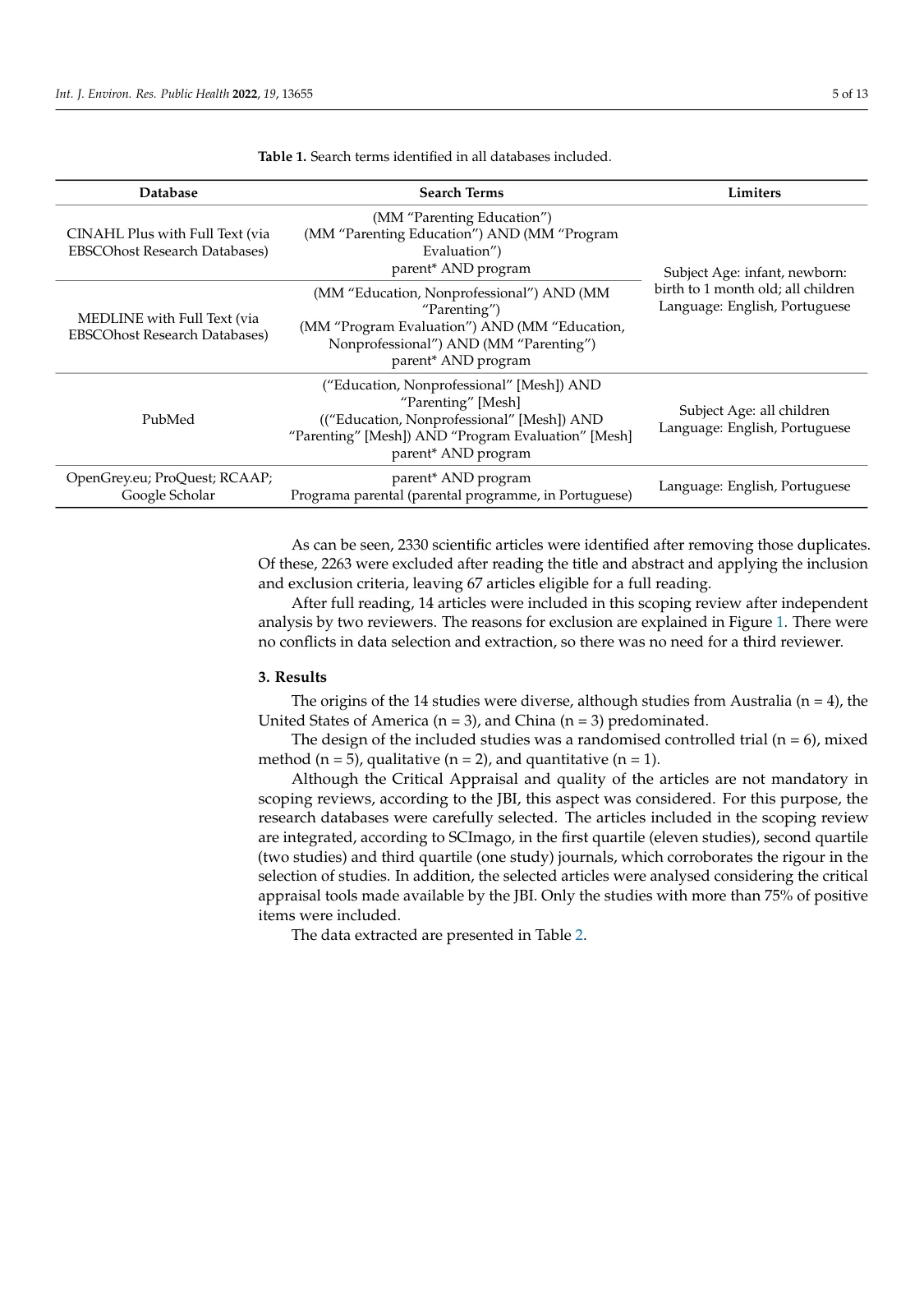
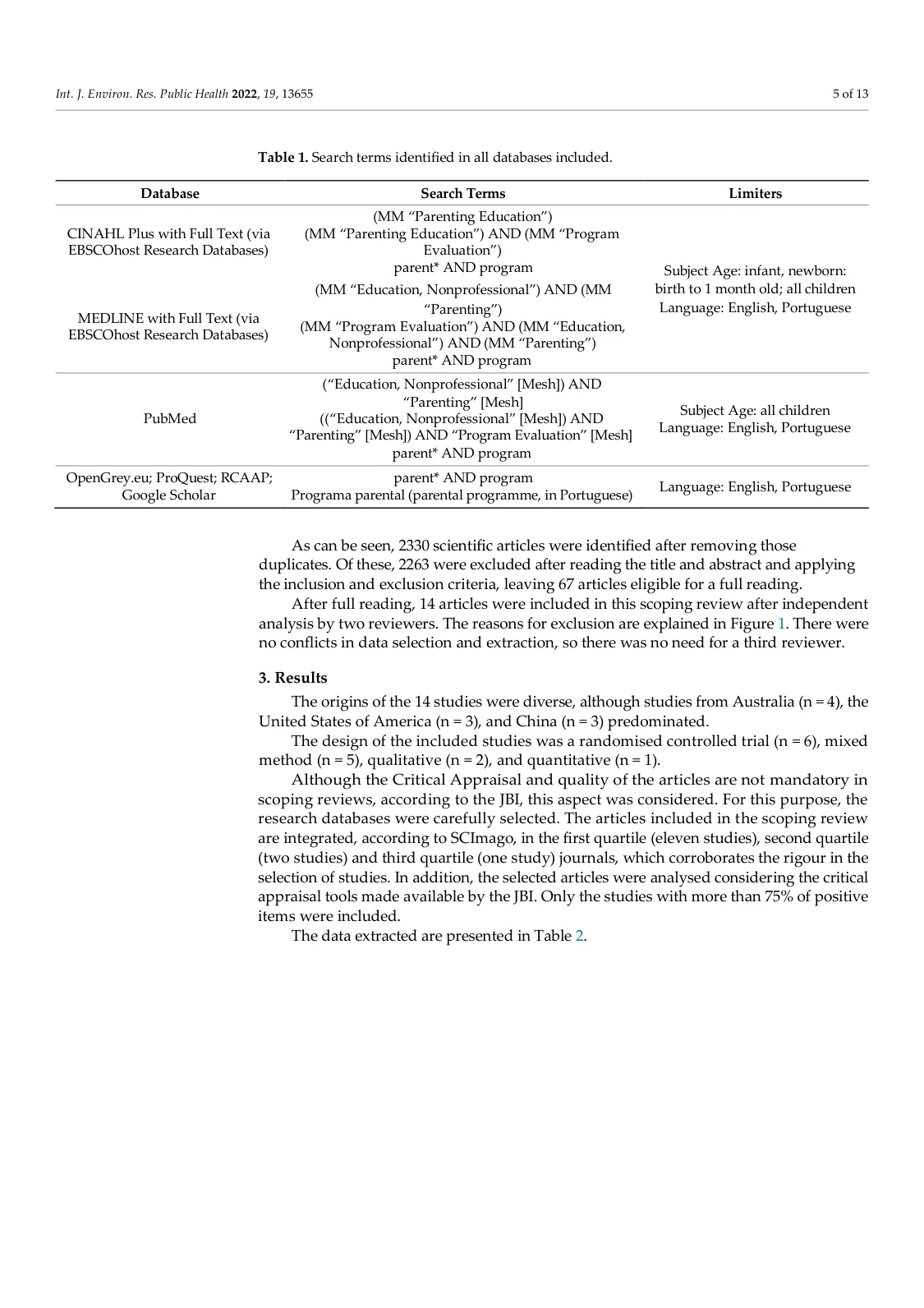
- PDF to Word: the 13-page paper with the page shown at the top of this guide stayed 13 pages in Word, and its table became a real table.
- Upscaling: a picture of 1800 by 1100 pixels becomes 7200 by 4400 at four times.
The sample paper is by Ramos, Matos and Soares, in Int. J. Environ. Res. Public Health, 2022, open access under CC BY 4.0.